Here's something most typing guides won't tell you.
You can learn perfect touch typing technique – home row, floating wrists, the whole package – but if you're using a layout that fights against your fingers, you'll always hit a ceiling.
The layout matters.
I'm not talking about learning how to type. I'm talking about the actual arrangement of keys on your board. QWERTY. Dvorak. Colemak. ANSI versus ISO. Even those weird ortholinear grids that look like a sci‑fi control panel.
If you're a touch typist – meaning your fingers already know where to go without looking – then the layout you choose can speed you up, slow you down, or make your wrists ache after an hour.
Let's walk through your options.
First: What Does "Touch Type Keyboard Layout" Even Mean?
Two different things, actually.
First, there's the logical layout – which letter goes on which key. That's QWERTY, Dvorak, Colemak, AZERTY, etc.
Second, there's the physical layout – the shape, size, and position of the keys themselves. ANSI vs ISO. Full‑size vs tenkeyless. Ortholinear vs staggered.
Most people never think about either. They just use whatever keyboard came with their computer. But if you're serious about touch typing – if you want to type faster, more comfortably, for longer periods – then you owe it to your fingers to understand the differences.
The Logical Layouts: Where Your Letters Live
Let's start with the letters themselves.
QWERTY – The One You Already Know
Love it or hate it, QWERTY is everywhere. Designed in the 1870s for mechanical typewriters. The goal? Slow typists down so the typewriter arms didn't jam.
Seriously.
QWERTY was literally built to be inefficient.
And yet, over 150 years later, it's still the default. Why? Because everyone learned it. Because every keyboard comes with it. Because changing is a pain.
For touch typing, QWERTY is… fine. It's not optimal. Your left hand does way more work than your right. Common letter pairs like "ED" and "TH" require awkward finger stretches. But it's familiar. And familiarity matters.
If you're already a solid touch typist on QWERTY, switching layouts might not be worth the headache. But if you're starting fresh? Or if your hands hurt? Read on.
Dvorak – The "Optimized" Alternative
In the 1930s, Dr. August Dvorak said, "This is stupid. Let's fix it."
He designed a layout where:
- The home row contains the most common letters (A, O, E, U, I, D, H, T, N, S)
- Your strongest fingers (the index and middle) do most of the work
- Alternating hands is maximized, so you rarely use the same hand twice in a row
The result? Less finger travel. Less fatigue. Potentially faster typing.
I've met Dvorak touch typists who swear by it. They say switching was hell for two weeks, then their wrists stopped hurting, and their speed eventually passed their old QWERTY peak.
But here's the catch. Every other keyboard you touch – your phone, a friend's laptop, a library computer – will be QWERTY. You'll have to mentally switch back and forth. Some people can do it. Some can't.
Colemak – The Compromise
Colemak is newer (2006). It keeps most of the QWERTY letters in place – C, V, and P are moved, but that's about it. That means common shortcuts like Ctrl+C and Ctrl+V still work, and you don't lose your mind when using someone else's keyboard.
It's more efficient than QWERTY – about as efficient as Dvorak – but easier to learn because you only need to relearn 17 keys instead of all of them.
For touch typists who want better ergonomics without full Dvorak commitment, Colemak is a sweet spot.
Other Weird Ones (Workman, Norman, QWERTY‑based variants)
There are dozens. Workman prioritizes vertical finger movement. Norman keeps the bottom row mostly intact. Some people love them. Most have never heard of them.
If you're a hardcore tinkerer, go explore. But for 99% of touch typists, the real choice is between QWERTY, Dvorak, and Colemak.
The Physical Layouts: Where Your Keys Live
Now let's talk about the actual hardware.
ANSI vs ISO – The Enter Key War
You've probably seen two different Enter keys in your life:
- ANSI (American National Standards Institute) – wide, rectangular Enter key on the second row. Used in the US and many other countries.
- ISO (International Organization for Standardization) – tall, inverted L‑shaped Enter key, with an extra key next to left Shift. Used in Europe and elsewhere.
For touch typing, the difference matters. ISO gives you an extra key (usually | or \) near the left pinky. Some typists love it. Others say it throws off muscle memory because the left Shift key is smaller and harder to hit.
My take? Stick with whatever you learned. Switching between ANSI and ISO is frustrating but not impossible.
Staggered vs Ortholinear – The Grid Question
Standard keyboards are "staggered." Each row is offset from the one above. That's a leftover from typewriter mechanics – the levers needed space.
Ortholinear keyboards arrange keys in a perfect grid. Every column is straight up and down.
Touch typists who switch to ortholinear often report less wrist strain. Your fingers move straight up and down instead of diagonally. It feels weird for a few days. Then it feels natural.
The downside? Ortholinear keyboards are niche. Expensive. Hard to find in stores.
Column‑Staggered (Alice, Arisu, etc.)
A compromise between staggered and ortholinear. The columns are straight, but the two halves are angled outward so your wrists sit naturally. Popular in ergonomic keyboard communities.
If you have wrist pain from touch typing, this is worth looking into.
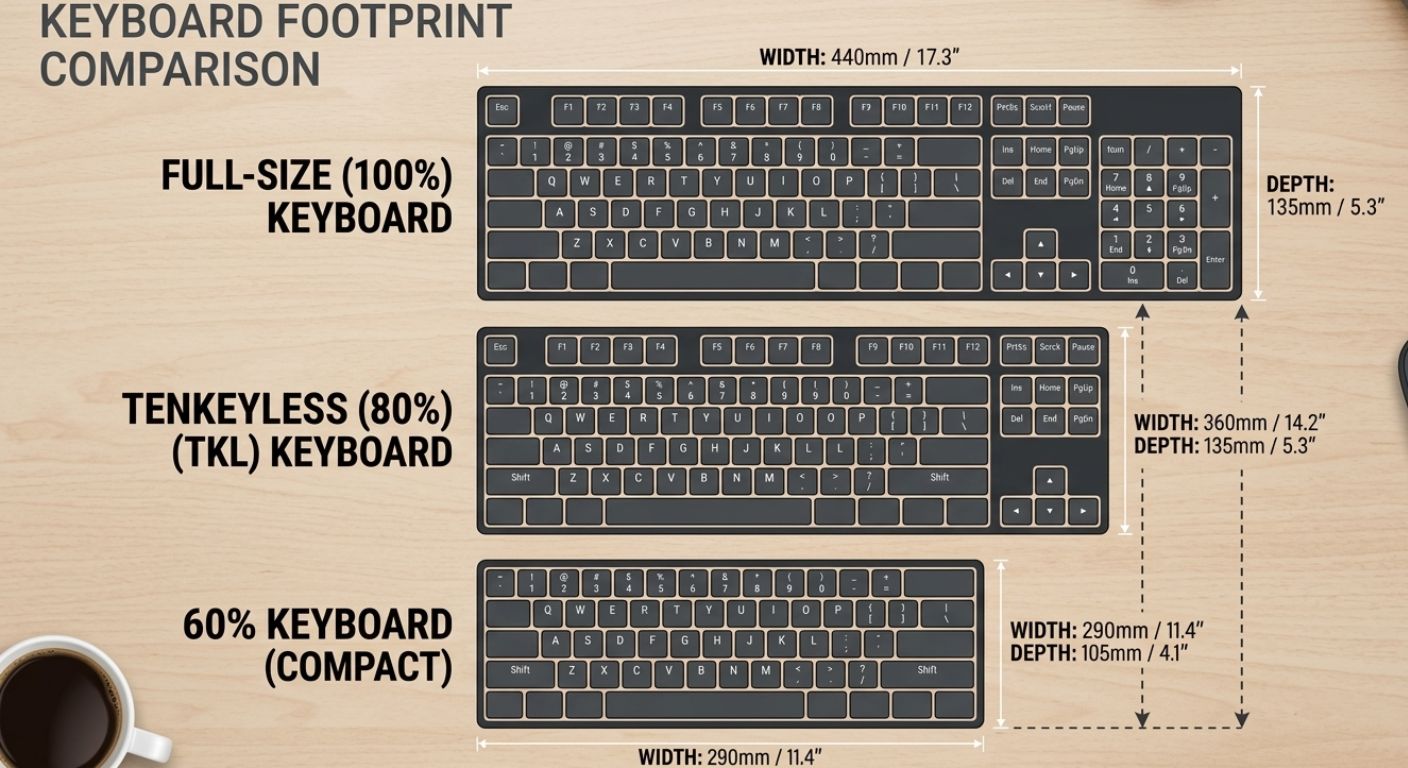
Full‑Size vs Tenkeyless vs 60%
- Full‑size – Has everything, including the number pad. Your right hand travels far to reach the mouse. Not ideal for touch typing efficiency.
- Tenkeyless (TKL) – No number pad. Hands stay closer together. My personal favorite for touch typing.
- 60% – No number pad, no function row, no arrow keys. Everything is on layers. Some touch typists love the minimal hand movement. Others hate the complexity.
Which Layout Is Best for Touch Typing
I can't give you a single answer. But I can give you a decision tree.
Stick with QWERTY if: You already type 60+ WPM on it, you don't have wrist pain, and you don't want to spend weeks relearning.
Switch to Dvorak if: You have wrist or finger pain, you're willing to suffer for two weeks, and you don't frequently use other people's keyboards.
Switch to Colemak if: You want better ergonomics than QWERTY but an easier transition than Dvorak.
Stick with ANSI if: You're in the US. It's fine.
Try ortholinear or column‑staggered if: You're a keyboard hobbyist or you have chronic pain.
For most touch typists reading this? Stay on QWERTY. Focus on your technique. The layout isn't holding you back as much as you think.
But if you're curious – if you want to experiment – then grab a cheap ortholinear board off AliExpress and try Colemak for a month. Worst case, you waste $50 and go back to what you know.
One More Thing: Software Layouts vs. Hardware Layouts
You can change your logical layout in your operating system without buying a new keyboard.
Windows, Mac, and Linux all let you switch to Dvorak or Colemak with a few clicks. Your physical keys still say QWERTY, but when you press the 'T' key, it types 'Y' (or whatever the new layout says).
This is confusing at first. Most people buy blank keycaps or use keyboard stickers. Or they just memorize the new positions.
If you're serious about switching layouts, do it in software first. Don't buy a new keyboard until you're sure.
The Bottom Line
Touch typing is a skill. The layout is just a tool.
You can type fast on QWERTY. You can type slow on Dvorak. The layout doesn't make the typist.
But if you're chasing every possible advantage – or if your hands hurt – then experimenting with a different layout might be the best thing you ever do.
Just don't switch layouts and expect magic. You still have to practice. Your fingers still have to learn.
Now, if you'll excuse me, I need to go explain to my Colemak‑using friend why I'm still on QWERTY.
Key Takeaways
- Touch type keyboard layout refers to both the logical letter arrangement (QWERTY, Dvorak, Colemak) and physical key positioning (ANSI, ISO, ortholinear).
- QWERTY is inefficient by design but universally familiar.
- Dvorak reduces finger travel and fatigue but has a brutal learning curve.
- Colemak is a middle ground – more efficient than QWERTY, easier than Dvorak.
- Physical layouts matter too: ANSI vs ISO, staggered vs ortholinear, full‑size vs TKL vs 60%.
- Most touch typists don't need to switch layouts. Technique matters more.
- If you have wrist pain, consider Colemak or an ergonomic physical layout before switching to Dvorak.
- Test layout changes in software first – don't buy a new keyboard immediately.
Author Bio
Abid is a competitive typist and a regular on the TypingBattles leaderboard. He started hunting and pecking at 15 WPM in high school and spent two frustrating years unlearning bad habits. Now he types at 105 WPM and has won over 400 online typing races. When he's not battling strangers on the internet, Abid coaches his local coding club's typing sessions and tests every keyboard he can get his hands on. He believes anyone can become a Key Master – they just need to stop looking down.
Recommendations
Layout decisions won't make you a faster typist overnight. But they can remove invisible ceilings and reduce wrist fatigue.
Now that you know your options, why not see how fast you currently type?
Take a typing speed test on TypingBattles – no account needed. Then try a multiplayer typing battle to feel the pressure.
If you ever switch layouts, come back and race again. You'll see the difference.
Read Also:
- Russian Keyboard Layouts: ЙЦУКЕН, ЯВЕРТЫ, and the Struggle of Typing Cyrillic
- Dvorak Layout: The Fast-Typing Alternative to Traditional Keyboards – But Brings Pain Before Progress
- Keyboard Switches Changed My Typing Life – But Not How You'd Expect
- I Thought Keyboard Dark Mode Was Silly – Then I Tried It Properly
- Gaming Keyboard and Mouse: I Read 100+ Reddit Threads So You Don't Have To