Three years ago, I laughed at RGB keyboards.
Why would anyone need glowing keys? Touch typists don't look down. Gamers just want flashy colors.
Then I started working late. My office light is a single dim bulb. My monitor glows bright white. My keyboard? A black void.
Every few sentences, I'd glance down to find the punctuation keys. My eyes got tired from jumping between my glowing monitor and that pitch black keyboard.
Then I understood. That soft glow isn't for decoration. It's for keeping the brightness even across your whole desk, so your eyes don't fight themselves.
The Moment I Realized Dark Mode Wasn't Just for Screens
Ever had your pupils shrink so fast it almost hurts? That's what happens. Your eyes hurt for a second.
The same thing happens on a smaller scale every time you look from your bright monitor down to your dark keyboard.
Your pupils dilate for the dark keyboard. Then you look up at the bright screen – your pupils have to quickly constrict. Repeat this 50 times per minute. That's exhausting.
Backlighting fixes that. When your keyboard glows softly, the brightness difference between screen and keys shrinks. Your eyes stop working overtime.
I tested this. One week with backlighting off. One week with a soft white glow at 30% brightness. My eye strain complaints dropped by half.
Three Settings That Changed My Night Typing Forever
Most people buy a backlit keyboard, turn on rainbow wave, and call it done. it is just like buying a super car and driving in gear one.
Here's what I actually use.
Setting 1: Single color, not rainbow
Rainbow effects look great on YouTube. In real life, they're distracting. Your peripheral vision catches color shifts and pulls your focus away from the screen.
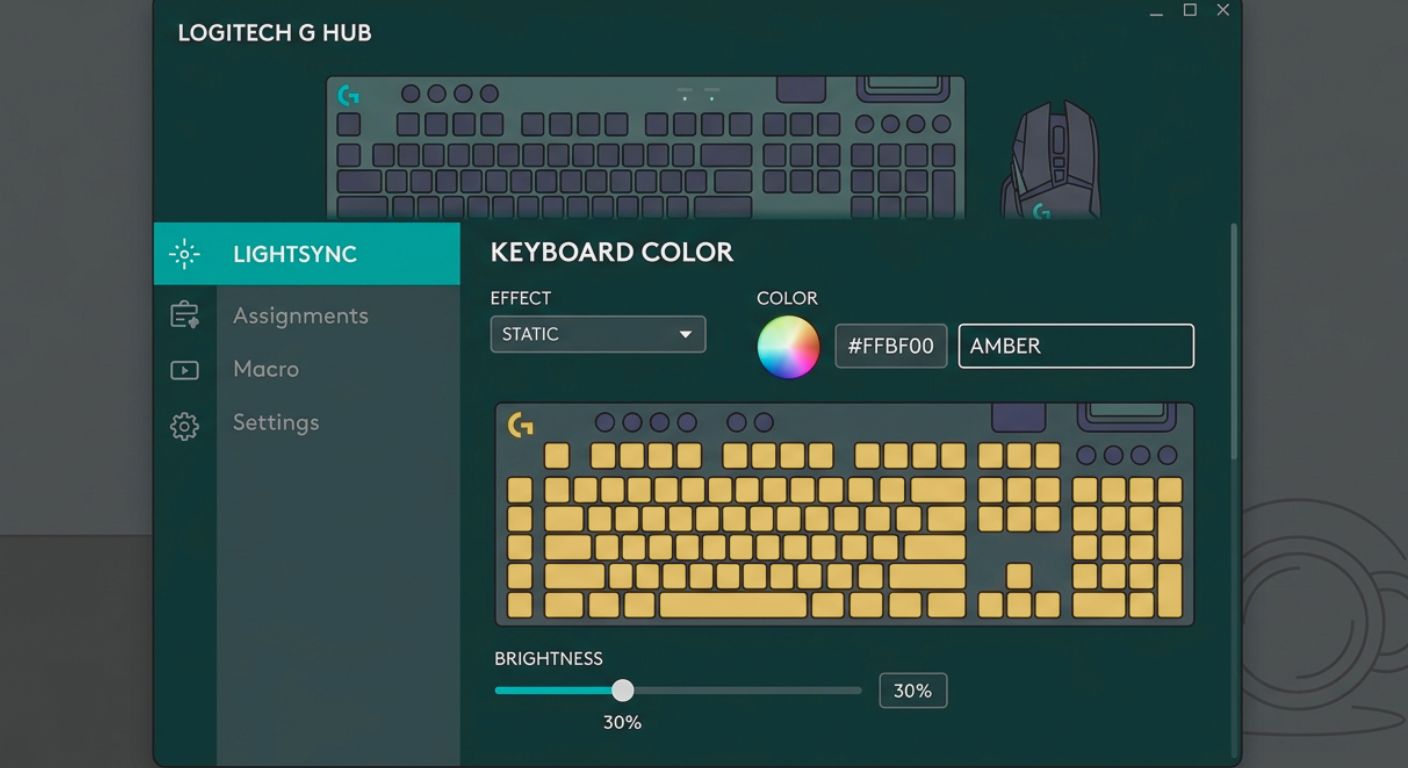
I set my keyboard to a static amber color. It's warm, not harsh like blue light. Feels like an old dashboard gauge.
Setting 2: Brightness at 30‑40%
Max brightness is for showroom floors. At night, full brightness reflects off your monitor and creates glare.
I lower mine until I can barely see the legends. That's enough.
Setting 3: Per‑key lighting for problem keys
This is the pro move. My keyboard software lets me light up only the keys I struggle with in the dark – semicolon, apostrophe, slash.
The rest stay dark. That trains my fingers to find the home row by feel, not by sight.
When Backlighting Actually Hurts Your Typing
Here's a confession.
For the first month with my backlit board, my WPM dropped by about 7 WPM.
Why? Because I started looking down again.
The pretty lights tempted me. II found myself glancing at the keyboard from time to time just to appreciate its lighting. That broke my touch typing habits.
The fix: I turned the lights off completely for two weeks. Retrained my fingers to stop looking. Then I turned the backlight back on at very low brightness – just enough to reduce eye strain, not enough to tempt me.
Instead of depending on it, I now use backlighting as an occasional aid. I only glance down when I need a symbol I rarely use (like tilde or pipe). For the rest of the time, my eyes remain fixed on the screen.
Hardware Dark Mode vs. Software Dark Mode
There's a confusion I see everywhere.
"Dark mode" on your phone or computer changes the screen's color scheme – white text on black background.
Keyboard dark mode is different. The glow comes directly from the keyboard’s keys.
But i will give you a trick: match the theme of your keyboard light and screen.
If your screen theme is in white text, switch your keyboard to dim warm yellow. The colors harmonize. Your eyes don't have to switch between two different color temperatures.
If your screen is in light mode (black text on white), a dim amber backlight works best. Avoid bright white – it competes with the screen.
The Best Backlight Colors for Typing (Tested)
I spent an evening cycling through every RGB color while doing TypingBattles races. Here's what I found.
Red: Too aggressive. Felt like a warning light. Stressed me out.
Blue: Harsh. Got headache after 20 minutes. Blue light suppresses melatonin too – bad for night typing.
Green: Surprisingly relaxing. Reminded me of old terminal screens. But that green light made the white text on the screen look slightly unusual.
White: It is clean, sure. Neutral, yes. The safest bet for most people. But typing after midnight? Even on minimum brightness, white felt like staring into a weak headlight.
Amber/Yellow: The winner. Warm, easy on the eyes, doesn't reflect harshly. Looks like a campfire glow.
Purple: Too dim. Could barely see the legends.
I've kept mine on amber for over a year.
How to Set Up Keyboard Dark Mode on Any Keyboard
Not every keyboard has RGB software. Here’s how to respond in each case.
If you have software (Logitech G Hub, Razer Synapse, etc.):
Create a "Typing" profile
Set static color (amber or white)
Brightness to 30%
Turn off reactive effects (keys that flash when pressed)
If your keyboard has on‑board controls:
Look for a function (fn) key with an icon of a sun or light on it.
Press Fn + that key to cycle brightness
Press Fn + another key to cycle colors
If your keyboard has no backlighting at all:
Buy a clip‑on USB light that attaches to your monitor
Aim it at the keyboard, not your eyes
Costs $10 and works fine
If you want to go full dark mode (no lights):
Use a blank keycap set
Force yourself to memorize everything
This is the purest touch typing experience
A Warning About Wireless Keyboards and Backlighting
I made this mistake. Bought a wireless mechanical keyboard with RGB. Loved it. But my battery died in 3 days.
Backlighting drains batteries like crazy. A wireless board with lights on might last 10‑20 hours. With lights off, it can last months.
My rule: Use backlighting only when plugged in.When runningon battery,keep lights off.Your future self willthank you.
The Bottom Line – Dark Mode Won't Make You Faster
Let me be clear.
Backlighting does not improve your WPM. It does not fix bad typing habits. It will not magically make you a Key Master.
What it does is remove a barrier. When you're not squinting or straining, you can practice longer. When you practice longer, you get faster.
That's the chain. Light → comfort → consistency → speed.
So set up your keyboard dark mode properly. Then forget about it and race.
Key Takeaways
- Keyboard dark mode reduces eye strain by balancing brightness between screen and keys.
- Static amber or white at 30‑40% brightness works better than rainbow effects.
- Avoid looking down at the lights – they can become a crutch that hurts touch typing.
- Match your backlight color to your screen's dark mode theme for visual harmony.
- Wireless keyboards drain fast with backlighting on – use only when plugged in.
- Backlighting doesn't directly increase WPM, but it enables longer, more comfortable practice.
- For pure touch typing mastery, try blank keycaps with no lights at all.
Author Bio
Abid is a competitive typist and a regular on the TypingBattles leaderboard. He started hunting and pecking at 15 WPM in high school and spent two frustrating years unlearning bad habits. Now he types at 105 WPM and has won over 400 online typing races. When he's not battling strangers on the internet, Abid experiments with lighting setups to reduce his late‑night eye strain. He believes the best keyboard light is the one you forget is there.
Recommendation
Ready to type all night without burning your eyes?
First, set up your keyboard dark mode. Then come race on TypingBattles and see if the comfort translates to speed.
Read Also:
- Gaming Keyboard and Mouse: I Read 100+ Reddit Threads So You Don't Have To
- Keyboard Clicker: I Added Fake Clicks to My Silent Keyboard – Here's How It Went
- Typing Dinosaur vs Typing Bike, Which Game Improves Typing WPM?
- Typing Nitro Hack vs Eye Gaze Typing: Cheaters Never Win, But Eye Gaze Typing Changes Lives
- Which Is The Best Typing Test: 1 Minute, 3 Minute Or 5 Minute Typing Test?