I'll be honest with you.
When I first tried to type in Russian, I assumed it would be easy. Just switch the layout in Windows, right? How hard could it be?
Then I looked at the keyboard.
ЙЦУКЕН. That's the top row. Not QWERTY. Not even close. My fingers panicked. My brain froze. I spent five minutes hunting for the letter "В" (which sounds like V but looks like B, because of course it does).
Russian typing is a different beast. Not because the alphabet is hard to learn – it's actually pretty logical. But because the keyboard layout decides where each letter lives. And if you're coming from English, nothing is where you expect it.
Let me walk you through the two main Russian layouts, which one makes sense for different people, and how to actually start touch typing in Cyrillic without rage‑quitting.
First: What Exactly Is the Russian Keyboard Layout?
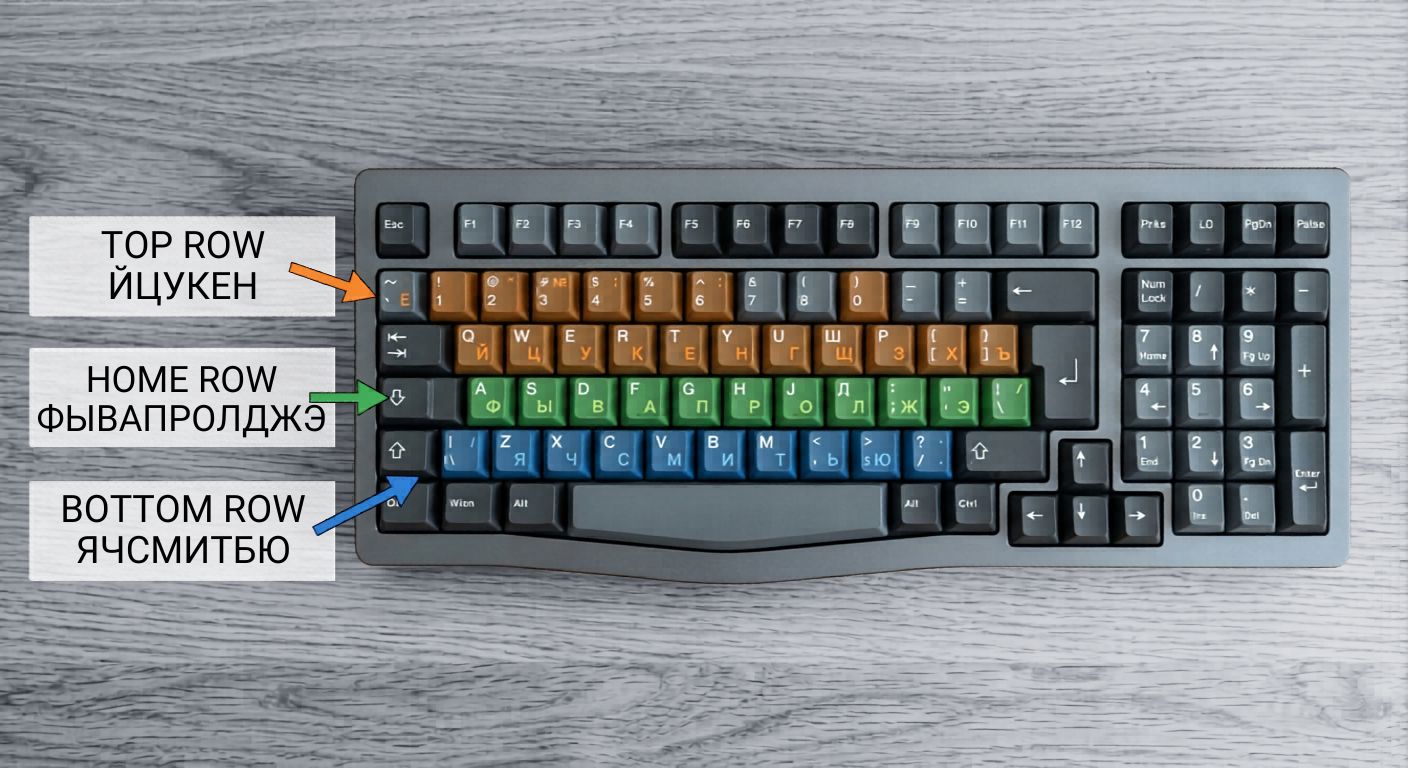
The standard Russian keyboard layout is called ЙЦУКЕН (pronounced "ee-tsoo-kyen"). Just like English has QWERTY (the first six letters on the top row), Russian has ЙЦУКЕН.
It was designed in the late 19th century for typewriters, then carried over to computers. And just like QWERTY, it's not perfectly optimized. But it's everywhere. Every Russian school teaches it. Every public computer in Russia has it.
The letters are arranged roughly by frequency – the most common vowels and consonants are on the home row. But for an English speaker, the positions feel random.
- The top row: Й Ц У К Е Н Г Ш Щ З Х Ъ
- The home row: Ф Ы В А П Р О Л Д Ж Э
- The bottom row: Я Ч С М И Т Ь Б Ю
See what I mean? Nothing matches QWERTY. The letter "A" in Russian (which sounds like "ah") is where the English F key lives. Your muscle memory will fight you constantly.
The Two Main Russian Layouts You'll Encounter
Most people don't realize there's a choice. But there are two common Russian keyboard layouts.
ЙЦУКЕН – The Standard (and Most Common)
This is the default on every Russian keyboard, operating system, and device. If you buy a physical keyboard with Cyrillic letters printed on the keys, it will almost certainly be ЙЦУКЕН.
Who should use it?
- Anyone who plans to type Russian frequently, especially on shared computers
- Students learning Russian in a formal classroom setting
- People who want to be able to sit down at any Russian keyboard and type without reconfiguring
The downsides:
- For English speakers, the learning curve is steep. Your fingers will want to go to QWERTY positions.
- The layout isn't phonetic – the letter that looks like B (В) sounds like V. The letter that looks like H (Н) sounds like N. It messes with your head.
ЯВЕРТЫ – The Phonetic (Homophonic) Layout
ЯВЕРТЫ (pronounced "ya-ver-ty") is designed specifically for English speakers learning Russian. The idea is simple: map each Russian letter to the English key that sounds like it.
- The Russian "A" (sounds like "ah") goes where English A is
- The Russian "B" (sounds like "v") goes where English V is – wait, no, that's confusing. Actually, phonetic layouts try to match sound, not appearance.
There are multiple phonetic variants. The most common one (sometimes called "Russian (Homophonic)" in Windows) puts:
- А on A
- Б on B
- В on V
- Г on G
- Д on D
- Е on E
- and so on.
This means you can type Russian by thinking about the sound rather than memorizing a completely new finger map. You type "privet" on your English keyboard and it comes out as "привет".
Who should use it?
- English speakers who are learning Russian and want to type without relearning finger positions
- Casual Russian typing (emails, chat, social media)
- People who only use their own computer and don't need to use shared Russian keyboards
The downsides:
- It's not standard. If you sit down at a Russian keyboard in Moscow, the letters on the keys won't match what you type.
- Some Russian letters have no good English sound match (like Ы, Ъ, Ь). Those get shoved onto punctuation keys.
- You'll still need to learn where the special characters are.
Physical Russian Keyboards vs. Software Layouts
You don't need to buy a special keyboard to type in Russian.
Both Windows and Mac let you add a Russian layout (ЙЦУКЕН or ЯВЕРТЫ) in the language settings. Once it's installed, you can switch between English and Russian with a hotkey (usually Windows + Space or Shift + Alt).
Your physical keys will still show English letters. That means you'll be touch typing blind – or you'll need to memorize the positions.
If you want physical labels, you have options:
- Keyboard stickers – Cheap vinyl stickers with Cyrillic letters. Stick them on your existing keycaps. Cost $5‑10.
- Replace keycaps – Buy a set of keycaps with both English and Russian legends. Common on mechanical keyboards.
- Buy a Russian keyboard – Full keyboards with dual legends are available on Amazon for $30‑50.
- Blank keycaps – Hardcore mode. Forces you to memorize everything.
Personally? I used stickers for a month. Then I realized I didn't need them anymore. Your muscle memory adapts faster than you think.
How to Start Touch Typing in Russian (Without Losing Your Mind)
You said you don't want learning drills, so I'll keep this practical.
The challenge with Russian touch typing isn't the layout itself – it's the conflict with your English muscle memory.
Your fingers know that the top‑left key is Q. In ЙЦУКЕН, that key is Й. Every time you go for Q, you get Й. It's frustrating.
Here's what actually helps:
Separate practice sessions – Don't switch back and forth every few minutes. Set aside 15 minutes where you only type in Russian. Let your brain switch modes completely.
Use online typing tests in Russian – There are sites that offer Cyrillic typing practice. The same concept as English speed tests, but with Russian words.
Type real content – Don't drill random letters. Type Russian song lyrics, news headlines, or simple sentences from your textbook. Real words build real muscle memory.
Be patient – Your first week will be brutal. You'll type at 5‑10 WPM. That's normal. By week three, you'll hit 20‑25. By month two, you'll be functional.
Which Russian Layout Should You Choose?
Here's my honest advice.
Choose ЙЦУКЕН if:
- You're serious about learning Russian long‑term
- You plan to use public or shared computers in Russian‑speaking countries
- You want to be able to read the keys on a standard Russian keyboard
- You're a glutton for punishment (kidding – it's really not that bad after a few weeks)
Choose ЯВЕРТЫ if:
- You're a casual learner or traveler
- You already touch type in English and don't want to learn a completely new finger map
- You only type Russian on your own personal computer
- You get frustrated easily and want the path of least resistance
I personally learned on ЙЦУКЕН because I was spending a month in Russia and needed to use library computers. It was painful for two weeks. Then it clicked. Now I can switch between English and Russian layouts without thinking.
But if I were just learning Russian from home for fun? I'd probably use ЯВЕРТЫ. Life's too short to memorize where Ъ lives.
A Quick Note on the "Russian (Typewriter)" Layout
You might see another option in your OS: "Russian (Typewriter)". This is an older layout that matches pre‑computer typewriters. Don't use it. It's outdated, inefficient, and will confuse everyone. Stick with standard ЙЦУКЕН or phonetic.
What About Touch Typing in russian on Phone?
Normally smart phones are different. On a touchscreen, you can just install a Russian keyboard app (Gboard, SwiftKey, etc.) and tap away. No muscle memory conflict because you're not using physical keys.
But if you're serious about Russian touch typing on a physical keyboard, the same principles apply: choose a layout, practice consistently, and don't look down.
The Bottom Line
Typing in Russian is absolutely learnable. The layout isn't the enemy – your existing English muscle memory is. Once you accept that your fingers will be confused for a few weeks, the frustration fades.
ЙЦУКЕН is the standard. ЯВЕРТЫ is the shortcut. Pick the one that fits your goals, install it today, and type one sentence. Just one. Then another tomorrow.
You'll be surprised how fast it sticks.
Key Takeaways
- The standard Russian keyboard layout is ЙЦУКЕН – just like QWERTY for English.
- ЯВЕРТЫ is a phonetic layout designed for English speakers, matching Russian sounds to English key positions.
- You don't need a physical Russian keyboard – add the layout in your OS settings and use stickers or memorize positions.
- ЙЦУКЕН is better for serious learners and anyone using shared Russian computers.
- ЯВЕРТЫ is easier for casual learners and those who already touch type in English.
- Expect 2‑4 weeks of awkward, slow typing before Russian touch typing feels natural.
- Typing real content (songs, news, messages) builds muscle memory faster than drills.
Author Bio
Abid is a competitive typist and a regular on the TypingBattles leaderboard. He started hunting and pecking at 15 WPM in high school and spent two frustrating years unlearning bad habits. Now he types at 105 WPM and has won over 400 online typing races. When he's not battling strangers on the internet, Abid coaches his local coding club's typing sessions and tests every keyboard he can get his hands on. He believes anyone can become a Key Master – they just need to stop looking down.
Recommendations
Ready to challenge your fingers with a new alphabet?
First, test your English typing speed on TypingBattles. Then install a Russian layout and see how long it takes you to type "привет мир" without looking.
It's harder than it looks. But that's the fun part.
Read Also:
- Dvorak Layout: The Fast-Typing Alternative to Traditional Keyboards – But Brings Pain Before Progress
- Keyboard Switches Changed My Typing Life – But Not How You'd Expect
- I Thought Keyboard Dark Mode Was Silly – Then I Tried It Properly
- Gaming Keyboard and Mouse: I Read 100+ Reddit Threads So You Don't Have To
- Keyboard Clicker: I Added Fake Clicks to My Silent Keyboard – Here's How It Went